Logging in to Amplience
You can log in to Amplience Content Operations Platform using your Amplience specific user name and password, or using single sign-on.
Amplience landing pageLink copied!
Once you've logged in, the Amplience landing page displays the services available to your account.
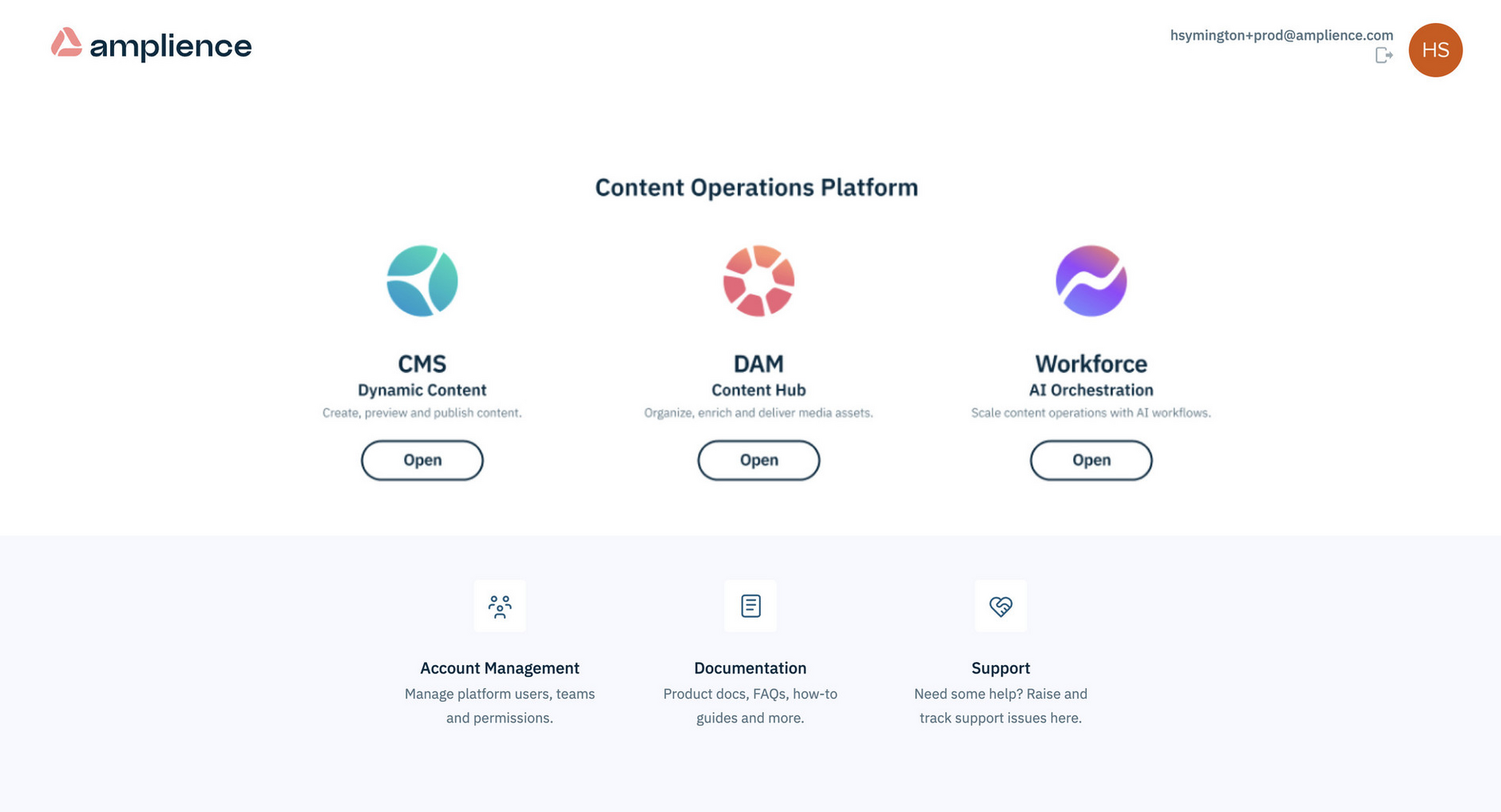
Using Amplience
Your level of access to Amplience depends on the permissions that are associated with your user account. These can be set by your administrator. Find out more about Permissions and roles.
Logging in with Amplience username and passwordLink copied!
Before you can log in, you need to accept the invitation sent to your email address. When you accept, you create an Amplience account. After that, you can log in at any time using the steps below.
To log in with your Amplience specific username and password, go to app.amplience.net/. This opens the Amplience "Welcome" page.
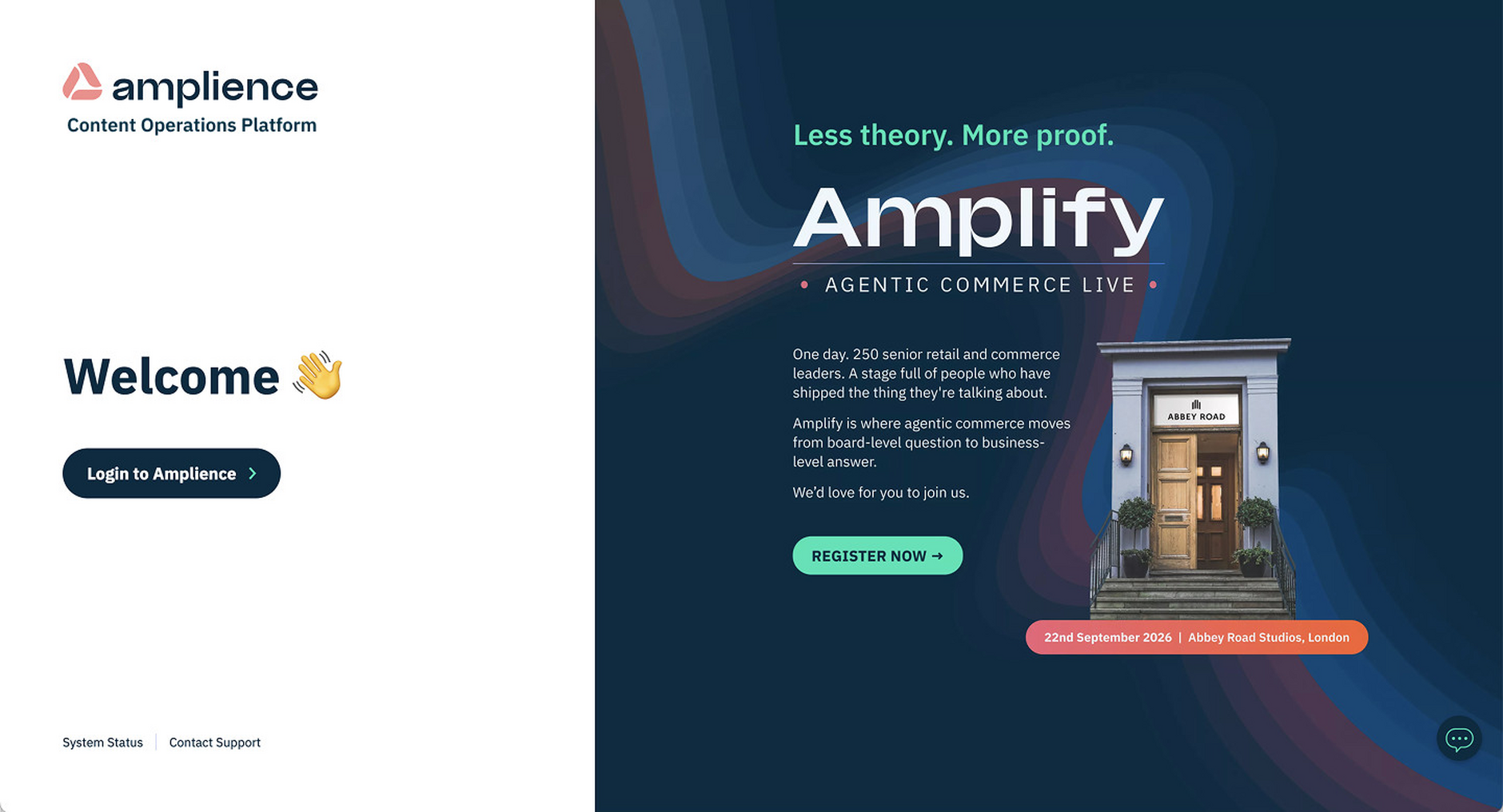
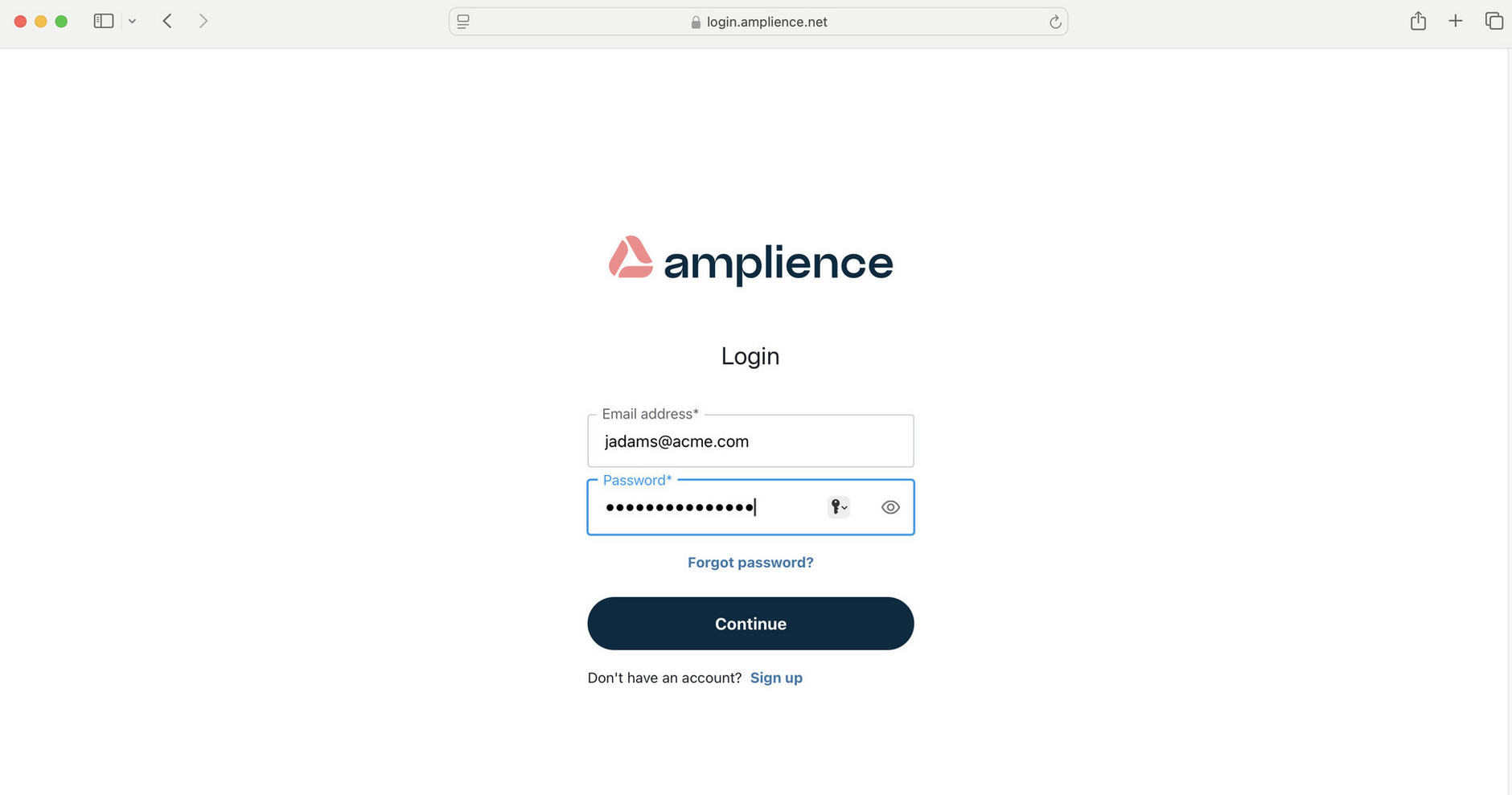
Click "Login to Amplience" to open the Amplience "Login" page, then enter your Amplience username and password.
The Amplience Landing page displays once you're logged in.
Password requirements
Passwords must be a minimum of eight characters and contain at least one uppercase character and one number.
Logging in using single sign-onLink copied!
Single sign-on (SSO) allows you to log in to Amplience without having to have an Amplience specific user name and password. Your organization will need to set up SSO.
Once single sign-on is enabled on your account, you will be provided with a login URL for accessing Amplience services.
If you're not currently logged in, your SSO login URL takes you to the Amplience Welcome page (shown below).
Clicking "Log in" on the Welcome page, takes you to your identity provider's login page. Note, if you've logged out, (or been logged out automatically) you will be prompted to login again (and will need to choose the SSO login option on the login screen).
The example below is using JumpCloud, but your chosen identity provider will be shown instead.

Log in using the name and password that you use for your identity provider. Your name and password will be verified with your identity provider and you'll be logged in to Amplience.
Already logged in?
If you're already logged in using SSO, the SSO login URL will take you directly to the Amplience Landing page.
Trouble logging in?Link copied!
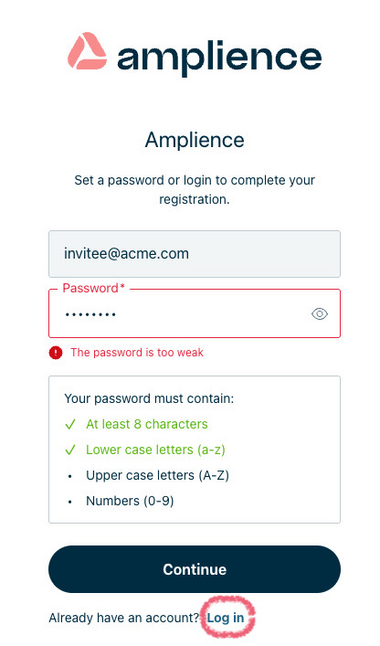
If you can’t log in, you may be on the "Sign up" page, shown below, which is for creating new accounts. In this case, click the Log in link, highlighted in the image, and enter your email address and password. If you still can’t log in, contact your administrator or Amplience Support.
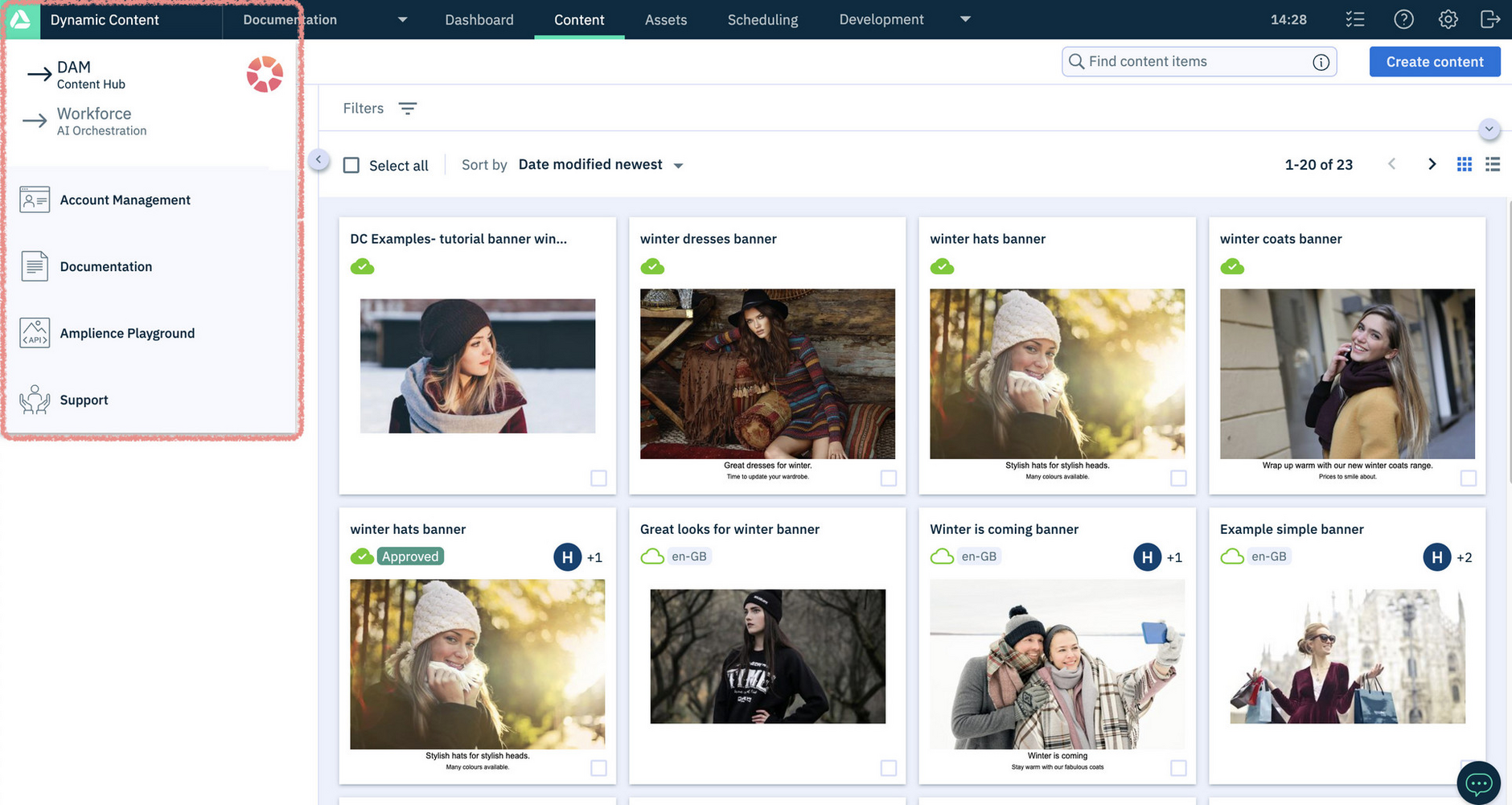
Switching between appsLink copied!
To switch between Amplience apps without having to log in again, use the app switcher menu.